
An ICS file, also called an iCalendar or iCal file, is a plain-text calendar event file. The quickest way to create one depends on the job:
- One event already in a calendar app: export it from that app.
- One simple event you need to control: create a small
.icsfile in a plain-text editor. - Events created by a product, form, or booking flow: generate the file in code or use a calendar-event service.
A valid file must use the .ics extension and include a VCALENDAR wrapper with at least one VEVENT. It can then be imported by calendar applications that support the iCalendar standard.
What an ICS File Is - and When to Use One
ICS, iCal, and iCalendar refer to the same calendar-data standard in everyday use. An .ics file can describe one event, a recurring series, or multiple events. It is best for a fixed event or a schedule that recipients will import as a snapshot.
If details are likely to change after you send them, make that limitation explicit to attendees: importing a file copies the event details available at that moment. For a managed event workflow, use a page or link you can update at the source instead of silently assuming every imported calendar entry will change with it.
This isn't a modern invention. The iCalendar format was officially standardized way back in 1998 by the Internet Engineering Task Force (IETF) as RFC 2445. The whole point was to create a reliable, interoperable way to share calendar data. It’s been tweaked over the years to keep up with modern needs, like adding better support for conference calls, but its core reliability is what matters.
Why This Format Is Still the Gold Standard
The real magic of the iCalendar standard is its interoperability. When you send someone an ICS file, you're not just sending a block of text; you're handing their calendar app a neatly packaged, structured piece of data it can instantly understand and process.
This structure is what allows for a rich set of information that goes way beyond a simple date and time. An ICS file can pack in a lot of detail:
- A full event description, complete with formatting.
- A specific location that can even link out to a map.
- Alarms and reminders that pop up before the event starts.
- Status updates, like "CONFIRMED" or "CANCELLED."
- Rules for recurring events, perfect for things like weekly team syncs.
Creating Your First ICS File Manually

Diving into your first manual ICS file might feel a bit technical, but it’s surprisingly straightforward. You don't need any special software to get started. A simple text editor like Notepad on Windows or TextEdit on a Mac is all you need.
At its heart, an ICS file is just a plain text file that follows a specific set of rules - the iCalendar syntax. The whole thing starts with BEGIN:VCALENDAR and wraps up with END:VCALENDAR. Inside that, each event you create gets its own BEGIN:VEVENT and END:VEVENT block.
This text-based approach is what makes it so powerful. You can easily create, share, and import these files across all the major calendar platforms, from Google Calendar to Microsoft Outlook. You can dig deeper into the technical specifications of the iCalendar format to see how all the pieces fit together.
The Smallest Useful ICS File
Use a plain-text editor and save the file as event.ics, not event.ics.txt. This is a minimal single-event structure:
BEGIN:VCALENDAR
VERSION:2.0
PRODID:-//Example Company//Events//EN
BEGIN:VEVENT
UID:[email protected]
DTSTAMP:20260908T120000Z
DTSTART:20261015T140000Z
DTEND:20261015T150000Z
SUMMARY:Product Demo
END:VEVENT
END:VCALENDAR
UID identifies the event. Keep it stable when you send an update to the same event. DTSTAMP records when the event record was created. DTSTART and DTEND define its time, and SUMMARY is the event title people see in their calendar.
Building Your VEVENT Block
With the calendar "envelope" ready, it's time for the good stuff: the actual event details. This all happens inside a VEVENT block, which is nested inside your VCALENDAR tags. This is where you put all the critical info your attendees need.
Let's say we're creating an event for a "Quarterly Team Kickoff." We'll need to define a few key properties to make this work.
Pro Tip: One of the most overlooked but crucial properties is the
UID(Unique Identifier). This string of text gives your event a unique identity. If you ever need to send an update, calendar apps use thisUIDto find and modify the existing event instead of creating a confusing duplicate.
Here are the must-have properties for our team meeting:
- DTSTAMP: The timestamp for when you created the event itself.
- UID: The unique ID for the event. A common and solid practice is to combine a timestamp with your domain name.
- DTSTART: The event's start date and time.
- DTEND: The event's end date and time.
- SUMMARY: This is the event title people will see on their calendar.
- DESCRIPTION: A more detailed explanation of what the event is about.
- LOCATION: The physical or virtual location of the meeting.
Putting it all together, here’s a complete, commented snippet for our team kickoff. You can copy this code, paste it into a plain text file, and save it with an .ics extension to create a working calendar event.
BEGIN:VCALENDAR VERSION:2.0 PRODID:-//Your Kickoff Meeting//EN BEGIN:VEVENT UID:[email protected] DTSTAMP:20240801T120000Z DTSTART:20240915T140000Z DTEND:20240915T150000Z SUMMARY:Quarterly Team Kickoff DESCRIPTION:Join us for the Q4 kickoff to review last quarter's results and align on new goals. LOCATION:Conference Room 4B END:VEVENT END:VCALENDAR
Before sharing a manually created file, open or import it in at least one target calendar. If the event time, title, or location is wrong, fix the source file before sending it to attendees.
Add Recurrence, Reminders, and Timezones Carefully
The magic is in understanding the properties that handle complexity, like recurring events and timezones. These are the details that separate a basic reminder from a professional, reliable event invitation that people can trust.
This handy infographic breaks down the fundamental workflow for creating an ICS file by hand.
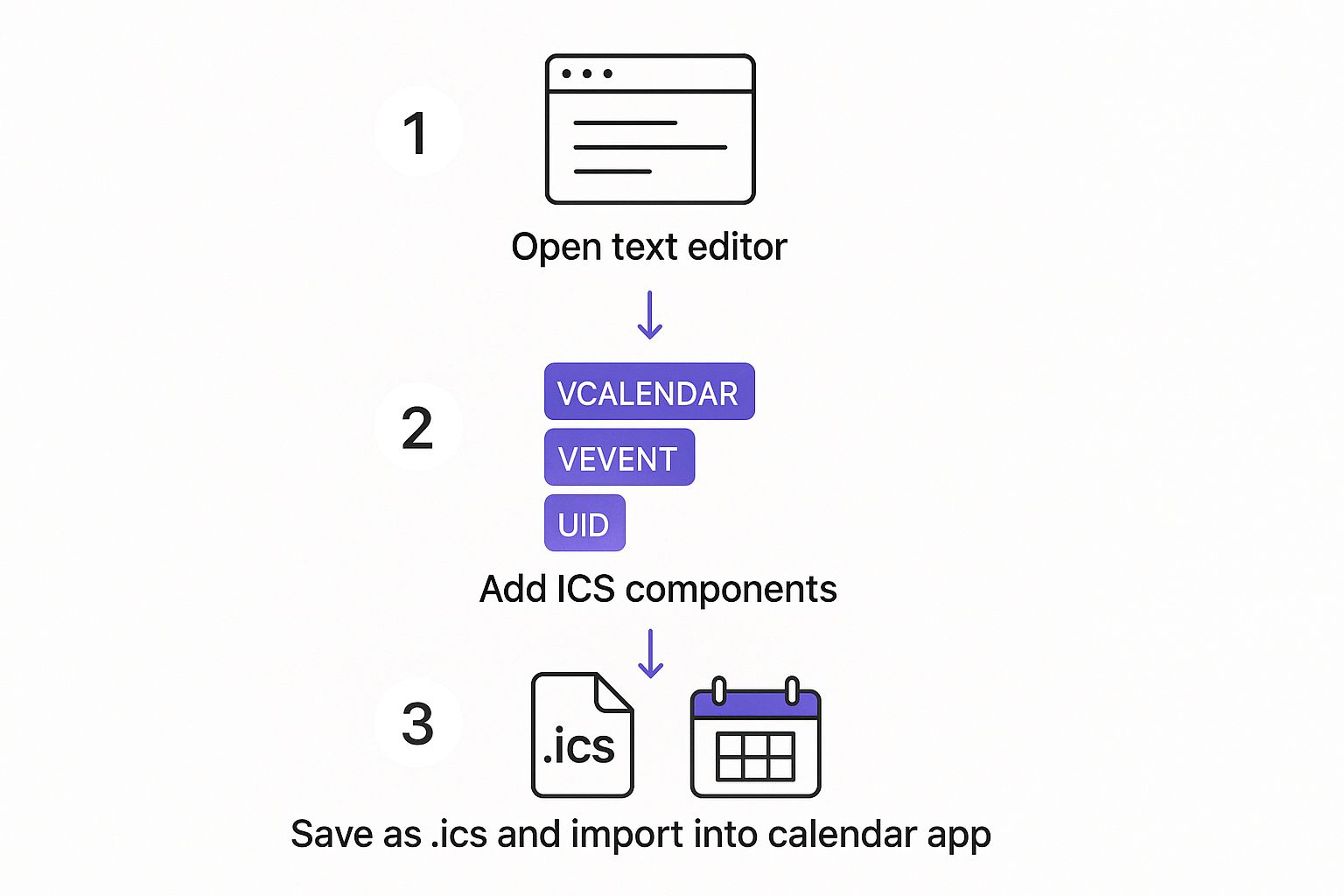
As you can see, the process really just comes down to three actions: writing out the event details, structuring that text with the right components, and saving it with the .ics extension so calendar apps know what to do with it.
Setting Up Recurring Events with RRULE
Nobody wants to manually create a calendar entry for every single session of a weekly sync-up or a monthly webinar. It’s tedious and a recipe for mistakes. This is exactly why the RRULE (Recurrence Rule) property is a game-changer. It lets you define a complex repeating pattern for an event with just a single entry.
The RRULE property uses a few key parameters to build the schedule:
FREQ: This is the core frequency of the event. Your main options areDAILY,WEEKLY,MONTHLY, orYEARLY.INTERVAL: This defines how often that frequency happens. For instance,FREQ=WEEKLY;INTERVAL=2means the event occurs every two weeks.UNTIL: This sets a specific end date for the recurrence, so the event series doesn't run on forever.
For a weekly team meeting that happens every Monday at 9 AM, your RRULE might look like this: RRULE:FREQ=WEEKLY;BYDAY=MO. One simple line of text saves you from creating dozens of individual events. It’s that easy.
Adding Alarms and Richer Details
A calendar event is much more than just a block of time; it's a communication tool. You can - and should - embed critical information directly into the ICS file to make sure your attendees show up prepared and on time.
The VALARM component is how you set reminders. You can configure an alarm to pop up a specific amount of time before the event kicks off. A line like TRIGGER:-PT15M sets a notification to appear 15 minutes before the start time.
You can also make your DESCRIPTION property much easier to read. The trick is to use the \n character to add line breaks. This lets you format bulleted lists, include hyperlinks, or just separate paragraphs within the event description. The result is a much cleaner and more professional look in the user's calendar.
For anyone managing events for a global audience, correctly handling timezones isn't just a feature - it's a requirement. A single mistake can cause attendees to miss an event entirely. This is one of the most common and frustrating pitfalls when creating an ICS file from scratch.
The Critical Role of Timezones
When you have people joining from different corners of the world, defining the timezone is absolutely non-negotiable.
The most robust way to handle this is with the VTIMEZONE component. It allows you to embed the full timezone definition, including all the tricky daylight saving rules, directly within the ICS file itself.
You then reference this timezone in your start and end times using the TZID parameter. It looks something like this: DTSTART;TZID=America/New_York:20241120T100000. This is what ensures the event time adjusts perfectly for every single user, no matter where they are.
While it's the most accurate method, it's also the most complex to get right by hand. This is one area where automation, like the kind our service provides, can save you from some significant and embarrassing scheduling headaches.
Automating ICS File Generation for Developers
When you’re managing events at scale, creating ICS files by hand isn't an option. Can you imagine generating hundreds of unique calendar files for a webinar series one by one? It would be a logistical nightmare. This is where programmatic generation comes in, turning a mind-numbing task into a slick, automated workflow.
Instead of trying to write raw ICS text (and worrying about syntax), you can lean on specialized libraries that handle all the tricky formatting for you. It’s not just about saving time; it’s about drastically cutting down on the kinds of syntax errors that can make your calendar file completely unreadable.
Choosing the Right Library for Your Stack
Thankfully, most modern programming languages have solid, open-source libraries ready to create ICS files on the fly. These tools give you simple functions or methods to define your event properties, and they do the heavy lifting of compiling everything into a perfectly formatted, RFC-compliant file.
Here are a couple of popular choices that are used effectively:
- JavaScript (Node.js & Browser): The
ics.jslibrary is a fantastic pick for both front-end and back-end work. You can build an event object and have it generate the ICS content, which you can then serve up as a download. It's super straightforward. - PHP: Libraries like
spatie/icalendar-generatorare widely used and well-maintained. They provide a clean, object-oriented way to build calendar events, manage timezones, and even set up recurrence rules.
If you're looking to plug ICS file generation into a bigger system, you might also want to look at general workflow automation tools like n8n. These platforms can connect different apps and services, letting you create ICS files as one step in a much larger process.
A Practical Code Example
Let's walk through a classic scenario. A user signs up for an event on your website, and you want to offer them an "add to calendar" download immediately. The backend code would grab the form data, use a library to build the event, and then trigger a file download in the user's browser.
Here’s what that might look like in a simplified JavaScript example using the ics library:
import { createEvent } from 'ics';
// Imagine you pulled these values from a form submission or your database const eventDetails = { title: 'Product Demo Webinar', description: 'Live demo of our new features.', start: 2024, 10, 26, 10, 0, // Year, Month, Day, Hour, Minute duration: { hours: 1 }, };
createEvent(eventDetails, (error, value) => { if (error) { console.log(error); return; }
// 'value' is now a string containing the full ICS file content
// From here, you can create a blob and trigger a download
console.log(value);
});
See how the library abstracts away all the messy details? You don't have to worry about DTSTART formatting or the VCALENDAR structure; you just focus on the event data.
One critical piece of advice for automation: make sure every single event gets a truly unique
UIDand an accurateDTSTAMP. If you use a staticUID, calendar clients will just overwrite existing events, which is a recipe for confusion. Always generate a newUID- based on a timestamp or a random string - for each unique event. If you want to dive deeper into how different calendars, especially Google, handle these files, check out our guide on Google Calendar and ICS files.
Automating this process is the key to embedding a smooth "add to calendar" feature right into your applications. It’s a small touch that provides a genuinely professional experience for your users.
Create ICS Files for a Repeatable Event Workflow
Manual files are useful for a one-off event. They become fragile when events recur, when multiple people manage details, or when event information changes after distribution.
Add to Calendar PRO's ICS tools are for teams that need to create and manage calendar events as part of an event workflow rather than hand-maintaining individual files.
ICS File Checklist
Before sharing an .ics file, verify:
- The filename ends in
.ics. BEGIN:VCALENDAR,BEGIN:VEVENT,END:VEVENT, andEND:VCALENDARare present.- The event has a unique
UID, aDTSTAMP, a start time, and a title. - UTC values end in
Z, or local times use an appropriate timezone definition. - A recurring event uses a tested
RRULE. - The file imports with the intended title, time, and location.
For a one-off event, that is enough. For a changing or recurring event program, use a managed source of event details and make the update path clear to attendees.